Security guide
How to check whether a PDF is actually redacted
There is exactly one test for whether a PDF is truly redacted: can the text under the covered area still be retrieved? Here are three checks you can run right now in any PDF reader, plus a detector as a backstop. If you can still copy text out from under a black box, the file is not redacted — don't share it.
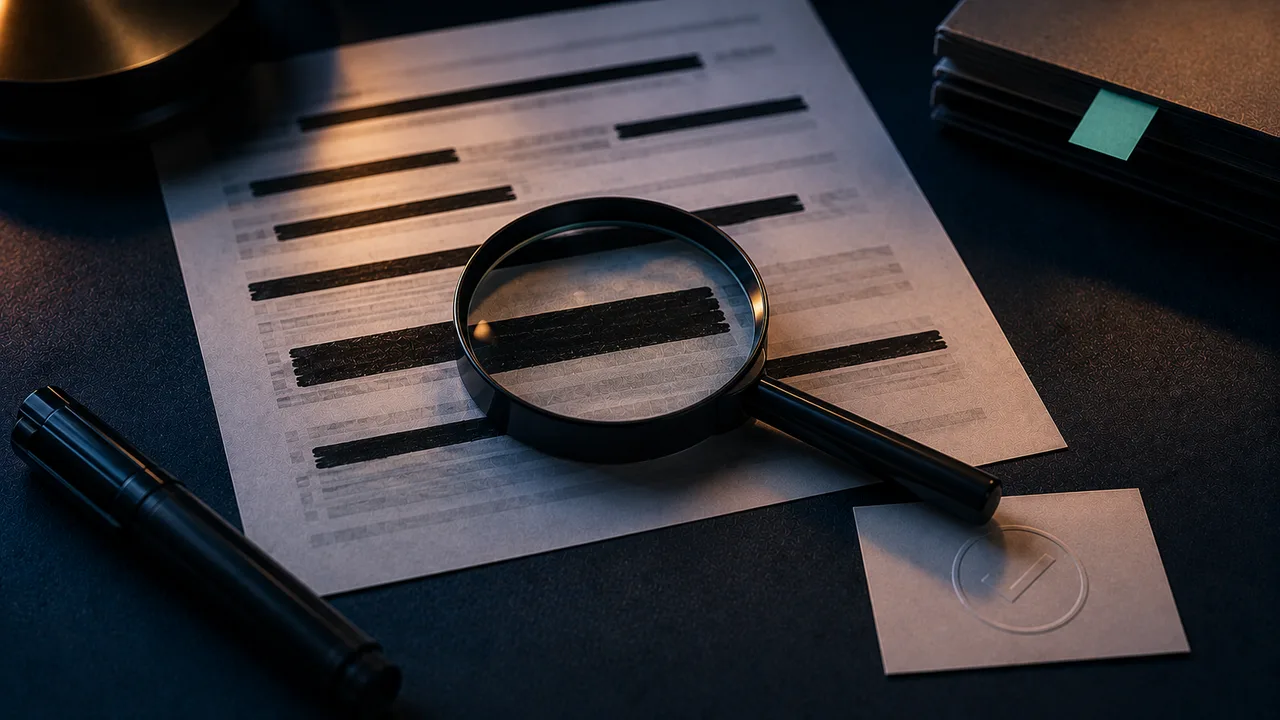
Verify before sharing
Method 1: Select-all and copy (fastest)
Open the output in any PDF reader, press Ctrl/⌘+A to select all, Ctrl/⌘+C to copy, and paste into a plain-text editor.
If the names, numbers, or addresses you thought were hidden show up in the paste, the box is merely sitting on top and the text objects remain — that's fake redaction.
Method 2: Keyword search
Use Ctrl/⌘+F in the reader to search for a specific term you redacted (a name, the last digits of a card).
If it's found and highlighted, the text still lives in the content stream, and OCR or a parser can read it just the same.
Method 3: Open it in a different reader
Some viewers render the black box faithfully; others reveal the layer beneath. Open it once in your browser's built-in PDF viewer and once in a separate reader.
If the box turns translucent or the text surfaces in either, the leak is confirmed.
Backstop: a one-click re-check
The three manual steps can miss things. Run the output through a fake-redaction detector, which parses the content stream and reports whether extractable text still sits under the covered areas.
Remember: a 'clean' result only speaks to the text layer. Also confirm the metadata (author, timestamps) was cleared.
FAQ
- The box looks fully opaque — do I still need to check?
- Yes. Opacity is only a display effect and has nothing to do with whether the underlying text was deleted. The only test is whether the text can be retrieved.
- Does printing and re-scanning count as redaction?
- Printing then scanning does drop the copyable text layer (it becomes an image), but it leaves an OCR-recoverable image and hurts quality and size. Rasterizing the page is the cleaner equivalent.